G Natural – Saving User Settings

Tuesday, December 11th, 2007

I ran into a little problem when I upgraded the software in my G Natural to the 1.03 release. I have to confess that I didn’t check the status of my user patches before installed the software, but after I finished the upgrade my patches were gone. I contacted TC support and they told me that the upgrade should not wipe out the user patches, so I suppose I did something else wrong, it certainly wouldn’t be the first time. But at least one other user on the TC G Natural support forum said he had the same problem.

I asked TC if they could offer a suggestion for saving my user patches, and they pointed me to Midi-Ox as a tool that can capture and restore MIDI information. Since I’m nearly totally ignorant of MIDI, I ran into a few issues but I’ve now succeeded so I thought I’d share what I’ve learned.

Hardware

The hardware you’ll need are a MIDI port on your computer (actually two of them, one for input and one for output) and one or two MIDI cables. Connect the computer MIDI OUT to the G Natural MIDI IN, connect the computer MIDI IN to the G Natural MIDI OUT.

Software

Download and install the MIDI-OX software on your computer.

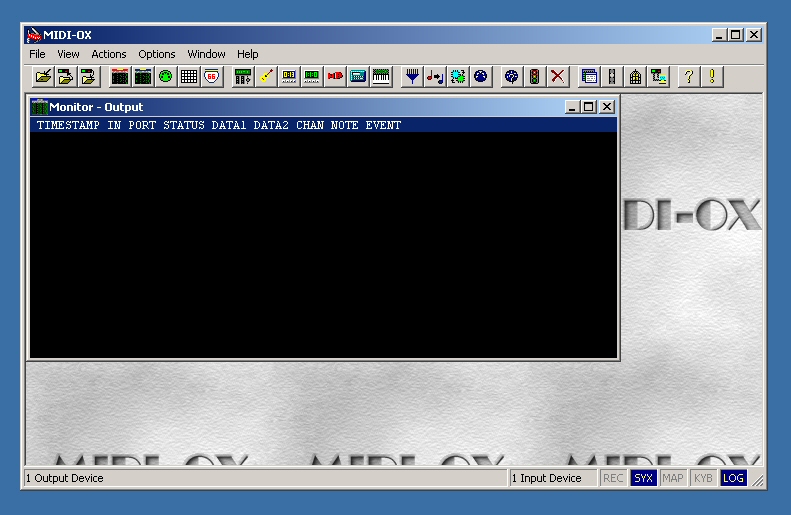
Start the MIDO-OX software, you should see a screen something like this:
Select Options | MIDI Devices… and you should see this, but with your own set of available devices:
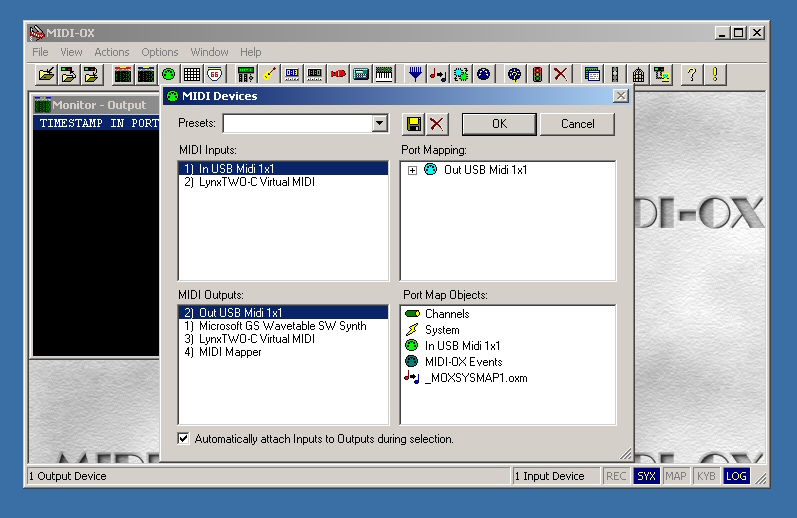
Click and highlight the input and output MIDI devices you hooked to your G Natural earlier. Click OK.

G Natural

Here we come to a possible gotcha of the first order. The 1.03 software update is advertised to enable MIDI functions. This makes sense because these functions are not yet documented in the latest manual on the TC site. So I suppose users who want to save their settings before upgrading to software version 1.03 are just out of luck. Oops. Still, once you have 1.03 installed, you’ll have a way to save settings in the future.

You get to MIDI functions by starting with the Menu button. Using the Edit D knob, scroll to the MIDI selection, then press Menu again to activate the MIDI menu.

Again using the Edit D knob, scroll to PrgChg.In: and make sure it’s set to Off. If it’s On, use Edit A, B, or C to change the value to Off.

Scroll with Edit D to PrgChg.Out: and once again make sure it’s Off.

Now scroll with Edit D to Dump System (for system wide settings) or Dump Bank (for user patches).

MIDI-OX

The particular corner of the MIDI world we’re using is called SysEx. This stands for System Exclusive, and it seems to be a method for storing and retrieving configuration information via MIDI. If you’re really curious. I’m sure there are lots of great tutorials out there in webland. Regardless, we can use MIDI-OX to capture a SysEx dump from the G Natural, save it to a file, and send the dump back to the G Natch.

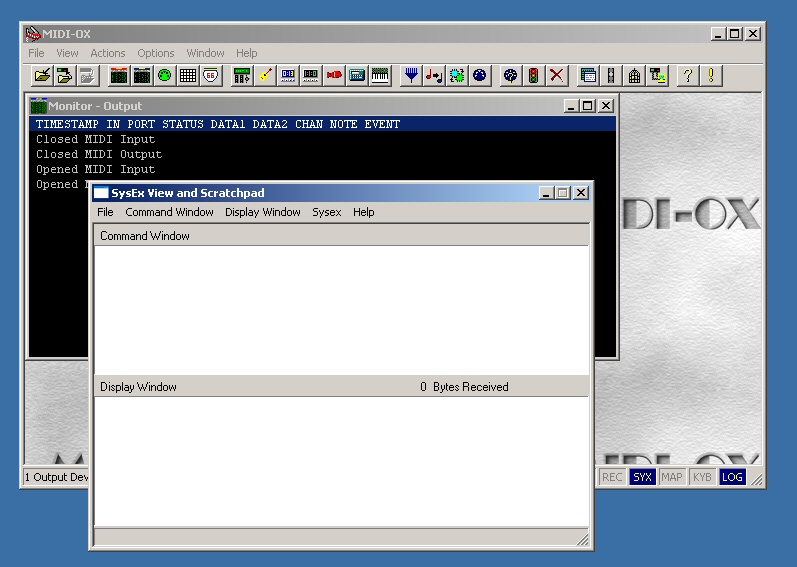
In MIDI-OX, click View | SysEx… and you should see this:
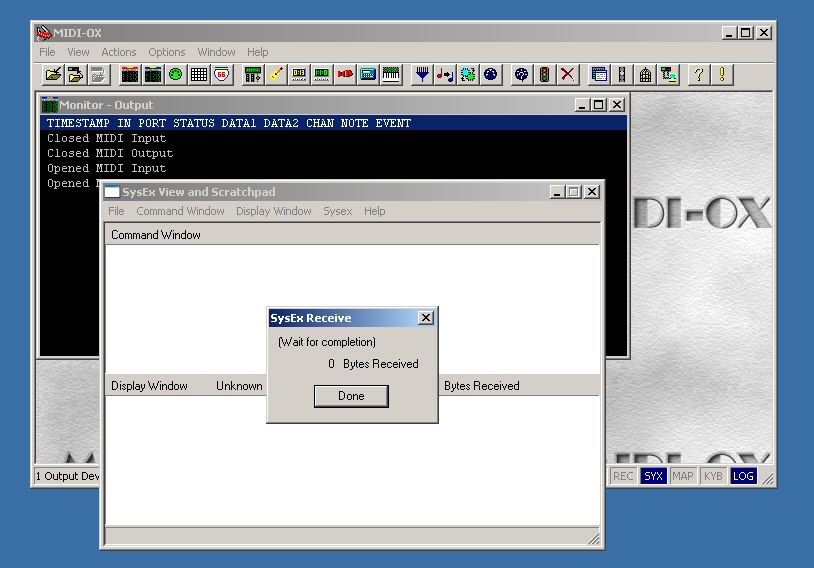
In the SysEx View and Scratchpad window, click Sysex | Receive Manual Dump… and you’ll see this:
G Natural

Press the Menu button on the G Natural and you’ll see a message telling you the dump is taking place.

MIDI-OX

You’ll see a byte count in the Sysex Receive message box. Press the Done button and you can view the results of the SysEx dump. The lower Display Window now contains the data from your G Natural, displayed in Hexadecimal format.

Click Display Window | Save As… to save the SysEx dump to a file of your choice.

Restoring Saved Settings

To restore your settings, simply activate the SysEx window and click File | Send Sysex file… and navigate to the file you saved in the previous step. You don’t have to take any action on the G Natural except to have it turned on and connected to your MIDI port.

In Conclusion

Hopefully this writeup will help other G Natural users. Even though I still enjoy the great sounds and control provided by the G Natural, I’m a little disappointed that I had to figure this procedure out on my own, and gather the tools myself. I’m also disappointed that an update to the manual has not been provided to go along with the software update. We’re once again operating our machines without accurate documentation. And finally, I expected to have a computer based patch editor available when I bought the G Natural. I had one with my much less expensive Yamaha MagicStomp, so I’m really unpleasantly surprised to find that TC Electronics does not provide one. A proper editor would make saving and restoring settings a snap, and make creating and configuring patches a lot easier as well.

TC Electronics has setup a forum area where we can share experiences and possibly encourage TC to expedite updates to the documentation and to provide a patch editor. I hope to see you there.


Zoom H2

Saturday, December 1st, 2007

I definitely don’t need another recording device around here, but my Recording Gear Acquisition Syndrome is not blunted by logic. The positive comments on various guitar forums piled up until I couldn’t resist the pressure. I had to have a Zoom H2 recorder.

I bought mine slightly used on Ebay. I saved a few bucks but even at the street price of $199 this is a pretty easy purchase to scrape up. Taking the thing out of the box, it’s pretty unimpressive – light and flimsy rather than solid and sturdy. The membrane switches gave me fits until I figure out that I should use my big fat finger instead of a delicate little touch with my fingernail.

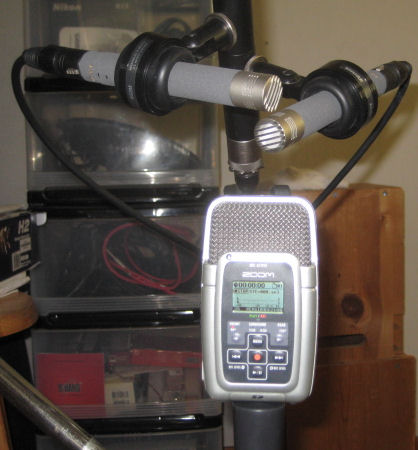
Naturally I have to do a comparison test between this little recorder and the PC rig. Here’s a picture of the setup I used:

The mics are a pair of Schoeps CMC6 bodies with MK41 caps, in a pretty careful 90 degree X/Y. The Zoom is as close to the same location as possible, using the front mics in 90 degree configuration.

I recorded my Martin OM-18GE in drop C, doing a chorus of “Silver Threads Among the Gold.” I’m posting the recordings without trying to encourage a blind test. I posted .wav files instead of mp3s, so the downloads will be a bit long, but you can do a careful comparison.

Schoeps

Zoom H2

I think anyone can hear a difference between these two samples, and I certainly prefer the Schoeps track, but if you add up the cost of duplicating the Schoeps->John Hardy->LynxTwo chain and compare it to the cost of the Zoom, well, that Zoom doesn’t sound too bad after all.

I also tested the H2 as a PC interface. The supplied USB cable and power adapter, along with the silly looking little plastic tripod stand, had me ready for some kitchen table recording in no time. One down side to this use, I have to go into the menu and setup the USB link every time I turn the H2 on. Not a big deal, but I wouldn’t mind if the unit could remember where I left off.

I don’t have any samples of this use of the H2, because I got wrapped up in doing multi-track experiments in Audacity and Reaper, but I haven’t come up with anything I am willing to make public yet. But I can say that the H2 works as a stereo USB mic with no hassle beyond the menu tweaking.

I’ve held on to my old minidisk recorder for a number of years, but it looks like I don’t need it anymore. This new recorder is going to get a lot of use around here.


About the Blog

    Howdy, my name is Fran Guidry and this is my Homebrewed Music blog.

    I play Hawaiian slack key guitar and recorded my solo acoustic CD at home. Most of the recording information I find on the internet seems focused on bands, drums, multitracking, and so on but my main focus is recording solo acoustic guitar. Lately I’ve been enjoying video recording along with audio, so that shows up in the blog as well.

    I’m also a guitar nut. I love big ones and little ones, handmades and factory guitars, cheap ones and expensive ones. So I’ll be sharing the fun of exploring guitars as well, along with the challenges of amplifying acoustic guitars for live performance.

    Welcome!

Philosophy

    My recording philosophy is pragmatic, skeptical, not super critical. After all, the performance is by far the most important component of a track, and every aspect of any recording is a matter of taste.

    But I do like to know “about stuff.” Back in hifi days I learned about double blind testing. I learned that we humans can easily hear differences that don’t really exist. The more I’ve learned about our human auditory system, the more I’m skeptical of what people say they hear, especially if they claim that a particular microphone or preamp or cable has some magical property.

    I’ve only been recording since 2001, and when I started I found the usual places on the internet. I sought advice and accepted it, thought I would improve my recordings by using more expensive equipment. It didn’t work.

    Two things that did seem to lead to better recordings were experience and room treatment. Getting an appealing sound is the combination of many small details, and learning those details only comes from experience. Amd the sound of the recording space is obviously a big factor.

    I’ve only recorded seriously using digital technology, but I remember trying to record rehearsals and gigs back in analog days. I don’t have any nostalgia for analog recording and playback systems at all. I think even low end digital systems can capture marvelous recordings. So when I look at gear, I look for good specs: low noise, broad flat frequency response, wide dynamic range, low distortion. I’m not interested in colorful components, mics and preamps with a sound, I want the sound to be the sound of my guitar.

    But the last word is that I’m just learning and I hope you find something useful in my posts.